

Form mode, step by step
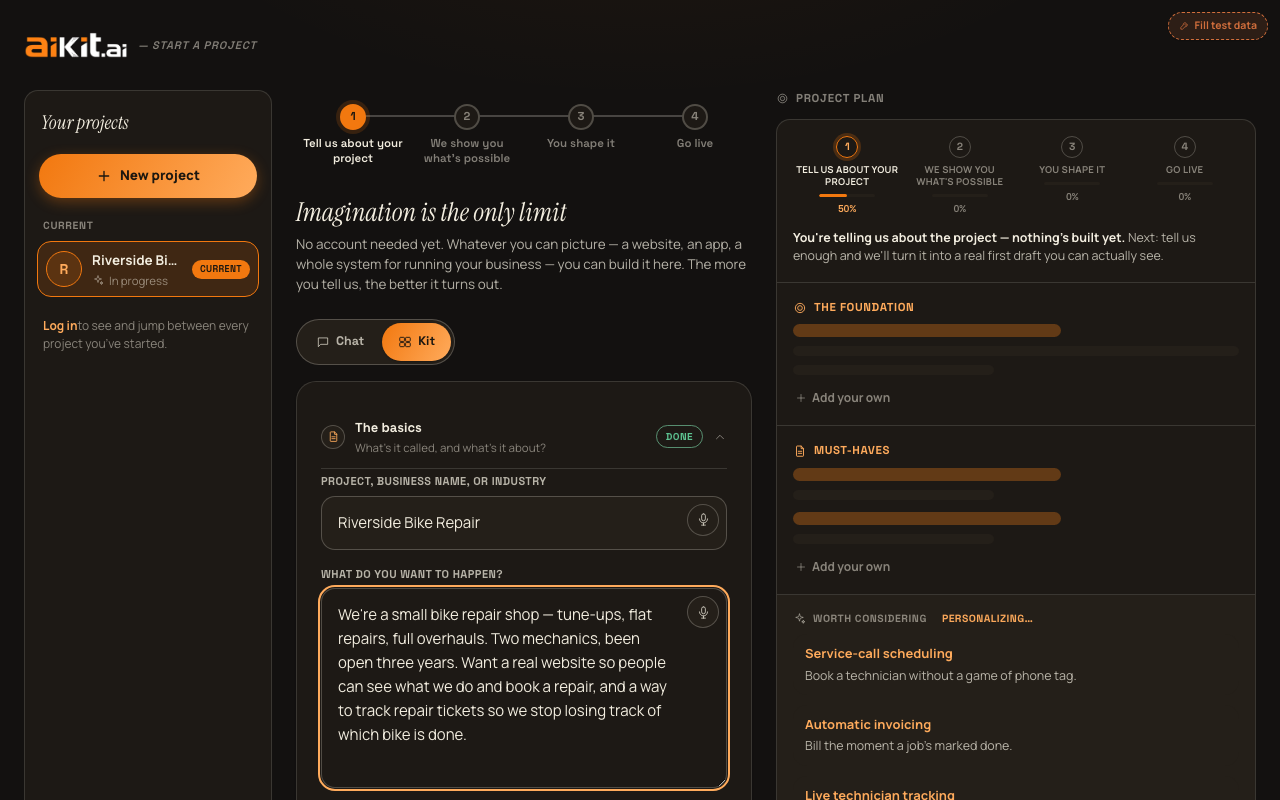
Form mode lays out the exact same intake as Chat mode, but as a structured form with three expandable sections — useful if you'd rather see and jump between every field at once instead of moving through them one at a time.
Section 1 — The basics
"Project, business name, or industry" is a plain text field (placeholder: "e.g. a landscaping business"). Below it, "What do you want to happen?" is the same paragraph-by-paragraph description builder Chat mode's description question uses (see "Building your description" in the "Chat mode" guide for the full mechanics) — by default, you type or dictate one paragraph, press Enter or "Add," and it appears as its own editable/removable card above the input, with a running "N things added" count and a short nudge after each add suggesting what's still worth covering (real numbers, tools you use today, a recent trigger, a past attempt, the operational side). A "Prefer to paste one big block instead? →" link switches to a single open textarea (placeholder: "e.g. We're a landscaping crew that mows lawns and does seasonal cleanups. Want an online quote form, a before/after photo gallery, and a way for customers to book recurring visits") for anyone who'd rather write or paste it all at once — either way it becomes the same single description, and a hint underneath the field tells you to include everything you can think of, one thought at a time or all together — the fuller the picture, the sharper what's built.
A third, optional field, "Already have a website?", takes a URL (placeholder "yourbusiness.com") — filling it in gets your existing site quickly read so the rest of the process reflects your real business instead of guessing.
Two more optional fields round out this section. "Any specific numbers worth knowing?" (placeholder: "e.g. $150 average job, ~20 quotes a week, 25-mile service radius") is for pricing, volume, or radius facts that are easy to lose inside a longer description. "Anything behind the scenes customers never see?" (placeholder: "e.g. Our crew still texts job photos to the office instead of using any real system") is for the internal, day-to-day side of running the business — separate from what a customer-facing site would show, but often just as worth building for.
Last is an open-ended "Anything else about the basics?" textarea — a place for any extra context (history, quirks, anything worth knowing) that doesn't fit the fields above.
This section shows a "Done" badge in its header once you've filled in both the name and the description, so you can see your progress across all three sections at a glance without opening each one.
Section 2 — Vision & audience
"Who's this mainly for?" and "What's the main goal?" are both optional single-line fields (placeholders "e.g. Homeowners within 20 miles" and "e.g. More quote requests every week") — the goal field in particular is the one thing aiKit quietly optimizes the rest of the draft around, which the field's own hint text says outright.
Two more optional fields sit right after the goal field. "What's got you doing this now?" (placeholder: "e.g. We just lost a job because our quote took 3 days to go out") is for the real, recent reason this project matters right now. "What have you already tried?" (placeholder: "e.g. We had a DIY Wix site for a year, but it never showed up in Google searches") is for a past website, tool, or contractor that didn't work out — so aiKit can actively avoid repeating it rather than guessing at your history.
Below those, a checkbox reads "Interview me for a stronger, more complete plan" with a "(Recommended)" tag — it's checked by default. This is where you turn the guided interview on or off (see that guide for what it actually asks).
Next is the project-type picker: "What kind of project is this? Pick as many as apply," a row of toggle pills — Website, Landing Page, Client Portal, Internal Tool, App, Admin System, Something Else — each showing a checkmark badge once selected. It's a genuine multi-select, not a single choice; if you pick more than one, a hint appears explaining that aiKit will build this as one project covering all of them, and that you can start a separate project afterward if you'd rather keep them apart.
Last is an open-ended "Anything else about your vision or audience?" textarea (placeholder example: "Our biggest competitor undercuts us on price, but we're way more reliable") for context that doesn't fit any of the fields above.
This section badges "Done" once any of the audience, goal, "what's got you doing this now," "what have you already tried," or notes fields has something in it.
Section 3 — Look & feel
"What do you already have?" is another multi-select pill row — Logo, Brand colors, Existing photos, Existing copy, Starting from scratch — each pill showing a checkmark when toggled on.
"Pick a style direction" is the style picker itself, shown inline as a grid of swatches, one per style (see "Choosing a visual style" for what each direction actually means). Each swatch is a genuine live mini-preview using that style's real fonts and colors, not a generic placeholder — a hint underneath says exactly that: "Each preview mirrors real heading style and color — not a guess, what you'll actually get," and notes you can cycle directions again later once you see your plan.
"Any inspiration?" is an optional textarea (placeholder: a link, or just a vibe — e.g. "something clean and simple") for anything else you want aiKit to lean on.
Last is an open-ended "Anything else about the look and feel?" textarea (placeholder example: "We tried a DIY Wix site once and it looked amateurish — that's the one thing I really don't want to repeat") — a good place for style baggage or specific dislikes that don't fit the inspiration field above.
This section badges "Done" once you've picked at least one "what you already have" option, written something in the inspiration field, or added a note.
AI-suggested feature ideas, right on the form
As soon as you've typed enough for aiKit to have something to go on, a separate card titled "Ideas for a project like this" appears below the three sections — a checklist of concrete feature suggestions grounded in what you've described, checked by default (uncheck any you don't want). Past the first four, a "Show N more →" / "Show fewer ↑" toggle keeps the list from taking over the screen.
Building your draft
The primary button reads "Start the interview →" if the guided-interview checkbox is on, or "Generate my draft →" if it's off — disabled until you've entered a name, with a hint reminding you to add one if it's empty. If the interview is on, a second button, "Skip it — generate my draft now →," lets you bypass the interview and build immediately anyway.
Once you're ready — whether every section is filled in or not — that single action generates your first draft from whatever you've entered. Empty or skipped fields don't block you; aiKit fills reasonable, clearly-flagged placeholder content around the gaps instead. A reassurance line stays visible the whole time: "No account needed for your first project — you'll see a real plan before we ever ask you to sign up."
If this is a second project and you haven't made an account yet, that generate action is where aiKit asks for one: a compact signup card opens over the intake instead of taking you to a separate login page. Everything you filled in stays exactly where it was, and creating the account immediately builds the plan you just asked for — you don't retype anything or press the button again.
Have a quicker, specific question instead? Check the FAQ.