

Chat mode, step by step
Chat mode is the conversational way to start a project — one clean question at a time, not a stack of labeled fields. Here's exactly how it flows, including the two toggles that change how many questions you're asked.
The conversation itself
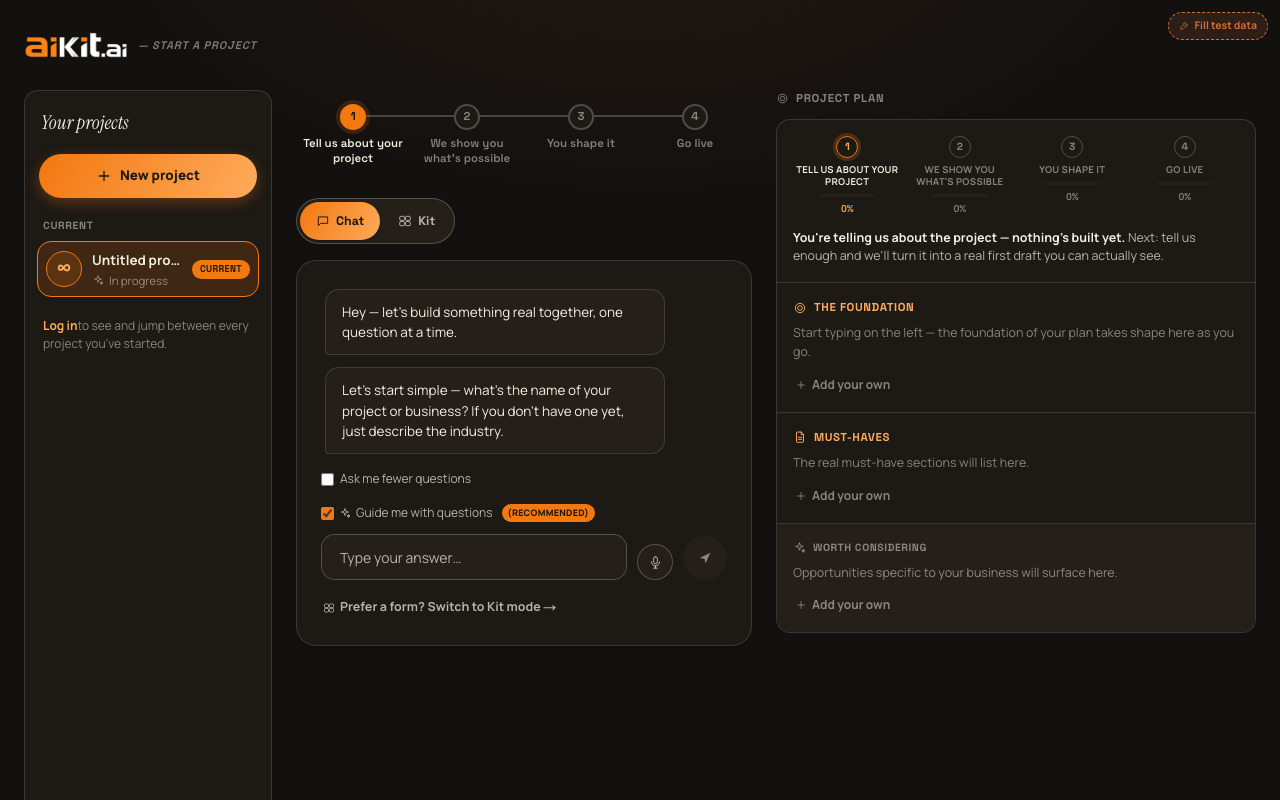
Chat mode has no separate headline above it — the greeting ("Hey — let's build something real together, one question at a time") is the first message in the conversation itself. It deliberately isn't a growing chat transcript: only the current question shows in full. Everything you've already answered collapses into one compact breadcrumb line above it, so the panel never feels busier the more you answer — the real plan taking shape lives in the panel beside it, not in a wall of chat bubbles.
As you answer, the same underlying fields Form mode uses (name, description, audience, goal, style, and what you already have) get filled in behind the scenes, so nothing you say in the chat is wasted or disconnected from the rest of your project.
Form mode's extra depth fields — what's driving the project right now, what you've already tried, specific numbers, behind-the-scenes needs — and its per-section notes boxes aren't asked as separate chat questions; Chat mode deliberately stays a simple, one-question-at-a-time conversation rather than growing a longer fixed script. The "What do you want this to actually do for you?" question already invites this kind of detail directly ("how you currently handle this... any tools or workarounds you're using now, real numbers if you've got them"), and the guided interview digs further into whatever came back thin. If you filled in any of Form mode's extra fields before switching to Chat, though, they carry straight through to your build the same as everything else — this is still one shared project, not two separate ones.
Answering a question
- The name, audience, and goal questions use a single auto-growing text box — it starts one line tall and expands as you type, up to a capped height, so it never feels like it's confining a long answer. Every text question has a voice-dictation button next to the input, and pressing Enter submits your answer the same as clicking send.
- The description question — "What do you want this to actually do for you?" — uses a different, dedicated builder instead of that plain box; see "Building your description" right below for exactly how it works.
- The "what do you already have" question shows pill buttons you tap to select any that apply (logo, brand colors, existing photos, existing copy, starting from scratch), each showing a checkmark once selected, plus a "Continue →" pill to move on.
- The style question shows a single swatch button with your currently-selected style's live mini-preview and the label "Browse styles & real examples →" — tapping it opens the same full-screen Style Explorer described in the "Choosing a visual style" guide.
Building your description — one paragraph at a time, or all at once
The description question replaces the plain text box with a small builder, because a single empty box either gets a one-liner or demands everything up front with no feedback along the way. By default you add your description one paragraph at a time: type or dictate one paragraph into the input row, then press Enter or the "Add" button — it appears as its own compact card above the input (with "Edit" and "Remove" links on each one), the input clears, and you write the next paragraph. A running count ("N things added") tracks your progress.
After each paragraph you add, a short nudge appears suggesting what's still worth covering — the same real depth this codebase actually judges a description by: named tools or workarounds you use today, real numbers (pricing, volume, staff count), what specifically triggered you to do this now, what a past attempt got wrong, or the internal/operational side of the business separate from what customers see. These are quick local suggestions, not a live AI check, so there's no delay between paragraphs.
When you're satisfied, "Use this description →" moves you on to the next question in the conversation — the same way pressing Enter/send does for the other questions.
Prefer to write or paste it all as one block, the way you might already have it typed up elsewhere? A "Prefer to paste one big block instead? →" link switches to a single open textarea — write or paste everything at once, with the same voice-dictation button available. You can switch back to building it up paragraph by paragraph at any time with the matching link, and nothing you've already written is lost either direction. Whichever way you fill it in, it becomes the exact same single description on your project — there's no difference in the result.
"Ask me fewer questions" and "Guide me with questions"
Two checkboxes sit above the input while you're mid-conversation. "Ask me fewer questions," off by default, skips straight past every optional question (everything except your name and description) once you check it, jumping you to the done state instead of asking them one by one.
"Guide me with questions," checked by default and marked (Recommended), is the Chat-mode counterpart to Form mode's guided-interview checkbox — once you've answered the core questions, checking it routes you into the real guided interview (see that guide) instead of building immediately. If you turn on "Ask me fewer questions," it wins over this one automatically, since asking fewer questions is a stronger signal than asking more — the guided-questions checkbox greys out but keeps its last setting, restored the moment you turn quick mode back off.
You can also skip an individual optional question with a "Skip this one" button, or stop the whole conversation early at any point past the first question with "I'm done — build it →", which builds your draft immediately from whatever you've answered so far.
Once you're done
When every question is answered (or skipped), the assistant's closing line reads "That's a real plan to build from. Ready to see what's possible?" and the input row is replaced by a single primary button — "Start the interview →" if guided questions are on, or "Build my plan →" if not — plus a "← Go back and change something" link.
Going back doesn't discard what you already said: reopening any earlier question pre-fills the box with your existing answer, so you're editing what's there rather than starting over from a blank field.
Switching to Form mode mid-conversation
A "Prefer to see every field at once? Switch to Form mode →" link sits below the conversation at every point. Switching carries over everything you've told aiKit so far — laid out as the same fields in Form mode, not reset.
Have a quicker, specific question instead? Check the FAQ.